
Mozaik does not store your jobs, libraries, settings, and other working data on your account or on Mozaik servers. That data is stored either locally on your computer or in the shared location your company uses for file sharing.
Because of that, moving Mozaik to a new computer is really a two-part process:
- Set up and license Mozaik on the new computer.
- Make sure your existing Mozaik data is available from the new computer.
The exact steps depend on whether your current setup is using file sharing or whether the Mozaik data is stored only on the computer being replaced.
Use this process if your Mozaik data is stored locally on the computer being replaced and is not shared with other Mozaik computers.
1. Update the Old Computer to Version 15
Before transferring your data, update Mozaik on the old computer to Version 15.
Version 15 uses the current Cyncly licensing system and no longer requires the monthly authorization-code process used in older versions.
Before updating, make sure you have access to an active Cyncly account connected to your Mozaik subscription. You will also use this account to license Mozaik on the new computer.
How to Update Mozaik to the Latest Full Version
2. Create a Backup on the Old Computer
Once the old computer is updated and working correctly, use Mozaik's built-in Backup tool to create a current backup of your data.
Save the backup somewhere that you can access from the new computer, such as:
- A USB drive
- An external hard drive
- A network location
- Another storage location
This backup will be used to move your existing Mozaik data to the new computer.
Software Update Backup No-File Sharing
3. Install Mozaik on the New Computer
Download and run the current Mozaik Installer on the new computer.
Once the installation is complete, open Mozaik and sign in using the authorized Cyncly account connected to your company's subscription.
Complete the licensing process for the new computer.
4. Restore the Backup
After Mozaik is installed and licensed, use the built-in Restore tool.
Select the backup created on the old computer and restore it to the new installation.
5. Verify Your Data
Open several jobs and review your important libraries, settings, materials, hardware, inserts, and other customized data.
Do not retire or erase the old computer until you have confirmed that everything transferred successfully.
Use this process if multiple Mozaik computers access the same shared data through a cloud file-sharing service or network location.
Because the Mozaik data is already stored in the shared location, you do not need to create and restore a separate backup as part of this transfer.
1. Close Mozaik on All Computers
Before updating any computer, close Mozaik on every computer that accesses the shared data.
No other seat should be using the shared Mozaik files while the update is being performed.
2. Update All Computers to Version 15
Update each Mozaik computer that uses the shared data to Version 15.
All computers accessing the same shared Mozaik data should be updated together. Do not leave one computer on an older version while another computer connected to the same shared files is running Version 15.
Before updating, make sure you have access to the appropriate Cyncly account connected to your Mozaik subscription so the computers can be licensed after the update.
How to Update Mozaik to the Latest Full Version
3. Set Up File Sharing on the New Computer
Install or configure the same file-sharing service or network connection on the new computer that is used by the existing Mozaik seats.
This may include:
- OneDrive
- Dropbox
- Google Drive
- A network drive
- Another shared storage location
Make sure the new computer can access the existing shared Mozaik folders.
If you are using a cloud-based service, make sure the required folders are fully synced and available locally on the computer rather than being cloud-only.
4. Install Mozaik on the New Computer
Download and run the current Mozaik Installer on the new computer.
Once installed, open Mozaik and sign in using an authorized Cyncly account connected to your company's subscription.
Complete the licensing process for the new computer.
5. Reconnect the Shared Folders
Once Mozaik is installed and the shared data is available on the new computer, reconnect Mozaik to the existing shared folders.
Go to:
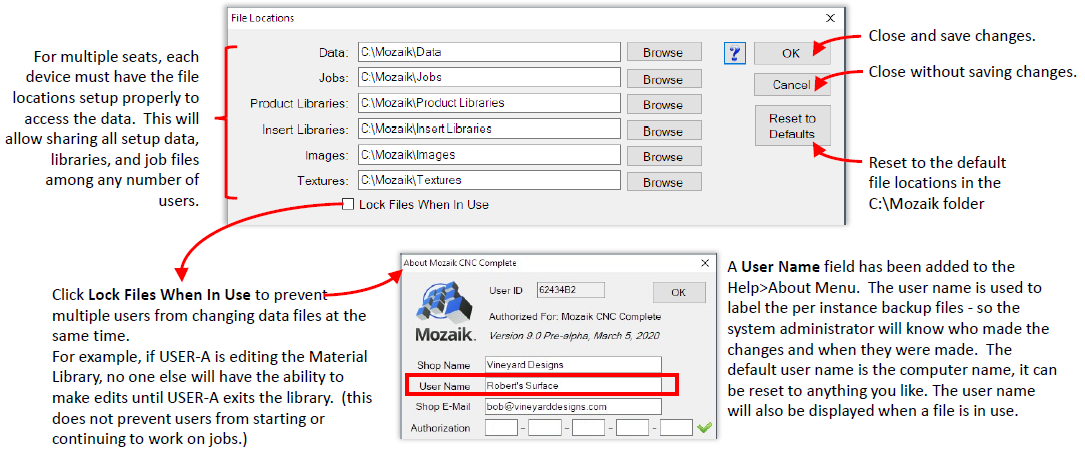
File > Preferences > File Locations
Point the new installation to the same shared locations used by your other Mozaik seats.
Depending on your setup, this may include:
- Data
- Jobs
- Product Libraries
- Insert Libraries
- Images
- Textures
6. Verify the Shared Data
Open Mozaik and confirm that the new computer can access your existing jobs, libraries, settings, and other shared data.
Before beginning normal work, make sure the file-sharing service has finished syncing and that the new computer is using the same shared locations as the other Mozaik seats.