
The article details how to transfer Mozaik software to a new computer, including backing up data and copying key folders, installing and updating Mozaik, requesting a license transfer by emailing support with User IDs, and restoring your original data to the new system for full functionality and settings continuity.
1. Prepare the Old Computer
This is the first step in the process of transferring Mozaik to a new computer. These instructions apply only if your current (old) computer is still fully functional and Mozaik is running properly.
Before beginning the transfer:
Ensure you have access to your working Mozaik installation.
Locate and copy your current User ID, as it will be required to authorize Mozaik on the new computer.
Create a full backup of your Mozaik data to protect your libraries, jobs, and settings before updating Mozaik.
Copy the specified folders that contain the unique personalized data you have generated.
Please expand any of the sections below for more detailed instructions.
If you are working from a recovered hard drive or your old computer is no longer operational, do not proceed with these steps. Instead, contact the Mozaik Help Desk for specific recovery and transfer instructions.
- Click the Tools menu.
- Select Backup/Restore.
- Click Create Full Mozaik Backup.
- Save the backup in a safe location (For example: an external hard drive or cloud storage).
If you are running Mozaik on only one computer, the process is straightforward.
- Download the Mozaik Installer/Updater
- Note: With the current version of Mozaik, the same file will install Mozaik on devices without a current installation, and will update computers that already have a current installation.
- Run the updater and follow the on-screen prompts.
If you are running Mozaik on multiple computers, you will want to update Mozaik on all of the computers the same time before opening on any of them.
Using an external storage device such as a USB drive is the simplest and safest method.
Insert a USB drive into the old computer.
Navigate to
C:\Mozaik\.-
Copy each of the following folders to the USB drive. These folders contain your job files, libraries, custom construction methods, images, and textures.
C:\Mozaik\DataC:\Mozaik\JobsC:\Mozaik\Product LibrariesC:\Mozaik\Insert LibrariesC:\Mozaik\ImagesC:\Mozaik\Textures
Once copying is complete, safely eject the USB drive.
- Open Mozaik on your old computer.
- Click the Help menu and select About.
- Record the User ID displayed in the dialog box.
2. Preparing the New Computer
This section outlines the steps required to properly prepare your new computer for Mozaik. The process includes installing the latest version of Mozaik, requesting and activating a license transfer, and replacing the default installation folders with your original data from the old computer.
You will first install Mozaik using the current Installer/Updater. After installation, you will request a license transfer by providing both the old and new User IDs to support. Once you receive your new Authorization Code and activate the software, you will delete the newly created default folders and replace them with your original Data, Jobs, Product Libraries, Insert Libraries, Images, and Textures folders.
Following these steps ensures your new computer is properly licensed and fully restored with your existing jobs, libraries, and settings.
If you are running Mozaik on only one computer, the process is straightforward.
- Download the Mozaik Installer/Updater
- Run the installer and follow the on-screen prompts.
- Once finished, you can launch the software immediately.
The new Mozaik Installer simplifies the process by handling both fresh installations and updates to the latest version. Watch the overview below to see how it works.
Send an email to the support team to process the license swap. You may use the template below.
Hi Support Team,
I would like to transfer our Mozaik license to a new computer and deactivate my current computer.
Company Name: [Your Company Name]
Old Computer User ID: [Old User ID]
New Computer User ID: [New User ID]Please transfer this seat to our new computer.
Thank you, [Your Name]
The support team will respond with a new Authorization Code (typically within 1-2 business days).
- Open Mozaik on the new computer.
- Copy the Authorization Code received from support.
- Paste the code into the Authorization fields.
- Click OK to finalize activation.
Step 1: Delete the Newly Created Folders
Note: Skip to Section E if you are using file sharing and connecting Mozaik to an Existing Shared Folder on the New Computer
After installing Mozaik on the new computer, the program will create new default folders. Before pasting your original data, you must remove these newly created folders so they can be properly replaced. Close Mozaik, and navigate to:
C:\Mozaik\
Delete the following folders:
C:\Mozaik\DataC:\Mozaik\JobsC:\Mozaik\Product LibrariesC:\Mozaik\Insert LibrariesC:\Mozaik\ImagesC:\Mozaik\Textures
Be sure you are deleting the folders on the new computer, not the old one.
Step 2: Paste Your Original Folders
Insert the USB drive containing the copied folders from your old computer.
Open the USB drive and copy the saved Mozaik folders.
Paste them into
C:\Mozaik\on the new computer.
Once completed, the new computer will now contain your original jobs, libraries, images, textures, and settings.
After pasting, open Mozaik and verify that your data appears correctly before proceeding to activation.
Step 1: Connect to your shared data
You will start by connecting the new computer to the same external location (your network drive or sfile sharing service). You will not need to recopy and folders to your external location. You will however need to have your shared folder accessible. For example, with Dropbox, you will need to download, install, sign in, and wait for it to sync. This can take some time.
Once you have verified that you can navigate to the SAME folder (Dropbox\MozaikShareDB\Data, Dropbox\MozaikShareDB\Jobs, etc) as the other seats (and the old computer) you will be ready to continue.
QUICK TIP:
If using cloud-based sharing, choose to store the files locally as well as in the cloud. This will allow for Mozaik to perform much faster, as well as work properly without network connections.
Step 2: Select your file location preferences in Mozaik
1. Open the file locations window.
- Next, we will want to direct Mozaik to use this new location by launching Mozaik by going to:
- File>Preferences>File Locations
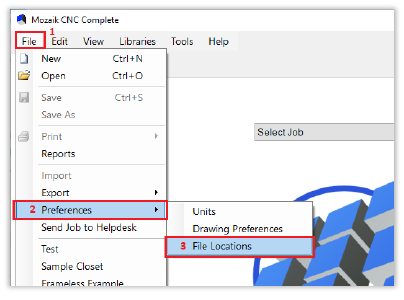
Note: This will be your second step on any additional seats. With the new frist step being to connect to your external location on the new computer.
2. Set your file locations.
- You'll be prompted with a window showing a list of the six folders as well as their default locations in the C:\Mozaik folder.
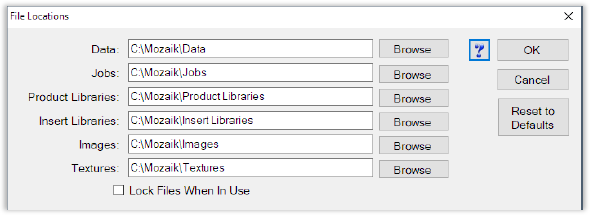
3. Browse for your folders.
- Next, click the browse button and navigate to the folder you wish to change to your shared location. We will start with data. You will be presented with a window showing a folder tree allowing you to navigate to your shared folder.
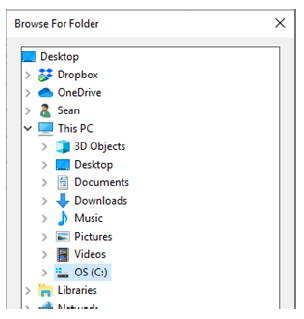
4. Select your data folder.
- Then move down the file folder tree to select the data folder. Click OK.
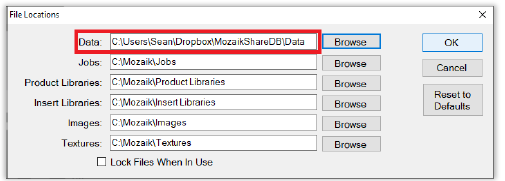
- In our example, it will be in our ...Dropbox\MozaikShareDM\Data
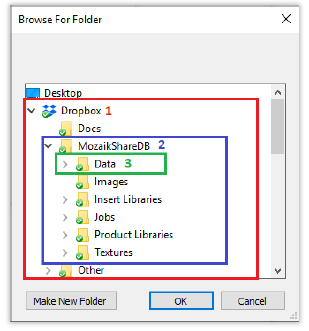
5. Verify that you selected the correct folder.
- You will notice the location of the new shared data folder. This will change the location of where Mozaik looks for the data folder. Verify this location is correct.
6. Repeat.
- You will then need to repeat steps 6-8 above for the remaining folders.
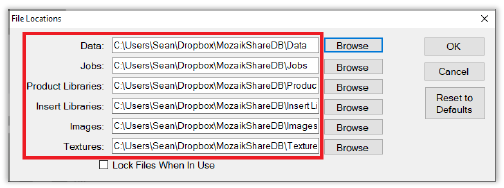
7. Close and restart.
- Click OK and you'll receive a notice to restart Mozaik for changes to take effect (Simply click OK again).
- After restarting Mozaik, the software will now look to your Dropbox folder to access your data, jobs, product library, inset libraries, textures, and images.