
Follow this guide to purchase additional licenses through your Cyncly account and activate Mozaik on a new workstation.
Purchase the additional seat
- Log in to your Cyncly Account.
- Navigate to the Manage Subscriptions tab on the left sidebar.
- Select the number of additional seats you wish to add to your subscription.

Install and retrieve User ID
- Download and install Mozaik on the new computer.
- Open Mozaik on the new computer to generate a unique User ID.
- Record the User ID displayed on the screen.
Request the activation code
Once you have purchased the seat and obtained the User ID, you must request an authorization code to activate the software.
Hi Support Team,
I have added an additional user to my subscription and would like to request a new Authorization Code.
Company Name: [Your Company Name]
New Computer User ID: [New User ID]Thank you, [Your Name]
Activate the new seat
The support team will respond with a new Authorization Code (typically within 1-2 business days).
- Open Mozaik on the new computer.
- Click the Help menu and select About.
- Paste the Authorization Code you received into the text fields.
- Click OK to finalize activation.
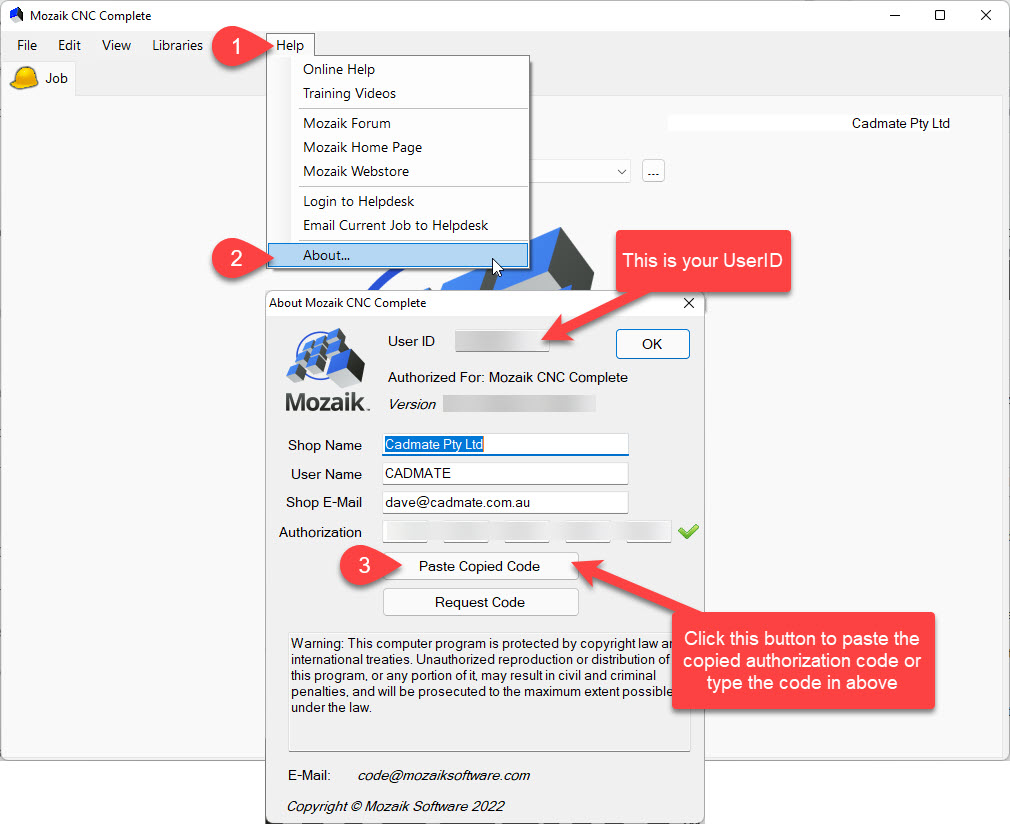
Set up your data
After activating the additional seat, determine whether the computers should share the same Mozaik data or continue using separate data.
Keep data synchronized between computers (recommended)
If you want both computers to access and work from the same Mozaik data, you can set up file sharing.
File Sharing Guide: Setup File Sharing
Transfer the data one time
If you only want to copy your current Mozaik data to the new computer one time, you can transfer the required folders using a USB drive, external storage device, or network location.
After the transfer is complete, the computers will continue using separate copies of the data. Changes made on one computer will not automatically appear on the other computer.
Transfer Mozaik Data to Another Computer: How to transfer your Mozaik to a New Computer
Note: If you have already requested and received an Authorization Code for the new computer by following the steps above, you can skip the code request steps included in the transfer guide.
Transfer individual jobs between computers
If the computers will maintain separate data, you can transfer individual jobs back and forth as needed. Export the job on one computer, copy it to a USB drive or another storage location, and then import it on the other computer.
Transfer Individual Mozaik Jobs: Exporting A Job